If you have multiple instances of the same patient under a Billing Provider, you can use Patient Merge to merge them together. Read on to find out how!
Method 1: From the Duplicate Patients section
Method 2: From the Patient page
Method 1: From the Duplicate Patients section
Step 1. On the navigation bar, click the arrow in the search field
Step 2. Click ‘View All Patients’ to view a comprehensive list of all patients
Step 3. (Situational) If applicable, choose which Billing Provider you’d like to work merges for.
Click ‘Confirm’ once you’ve made a selection.
Step 4. Locate the Potential Patient Duplicates banner, and click ‘View List’
Note: If you don’t see this option, this means daisyBill did not identify any exact duplicate patients. Refer to Method 2 if you have duplicates that were not identified in this list.
Step 5. Click ‘Review Duplicate(s)
Step 6. Compare the two patients
If they are duplicates of each other, click ‘Keep This Patient’ at the bottom to select a primary patient.
Step 7. Click ‘Merge Patient’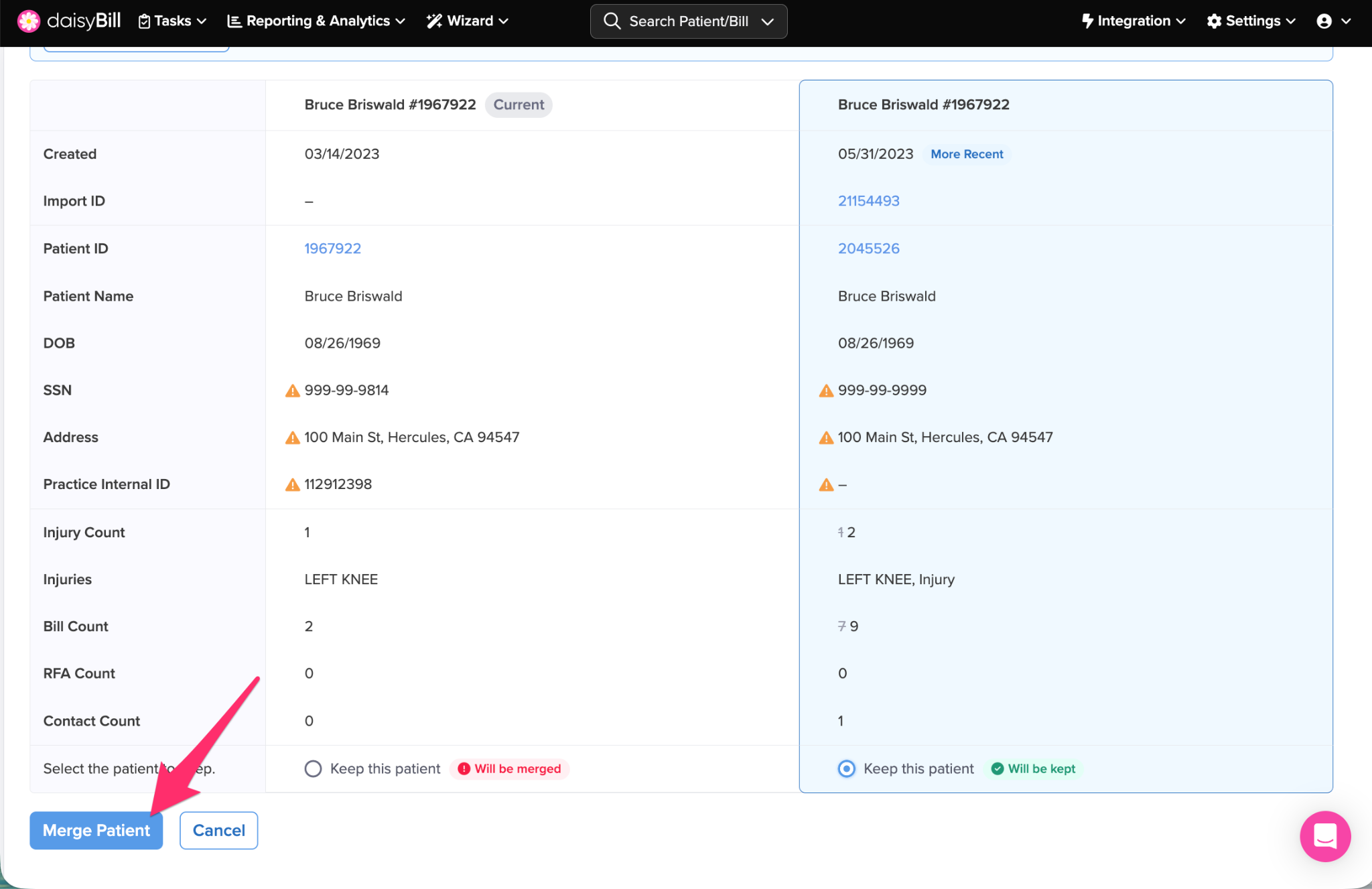
Step 8. Confirm the Patient merge
Patients Merged! Need to merge Injuries too? Refer to the Help Article: Injury Merge
Method 2: From the Patient page
Step 1. Click the vertical three dots on a duplicate patient page, and click ‘Merge with Patient Duplicate’
Note: It does not make a difference if you initiate this from the duplicate patient, or from the patient you wish to keep.
Step 2. Type in the name of the duplicate patient
Select the duplicate patient from the corresponding dropdown menu
Step 3. Review the two patients to determine which one you’d like to keep
Step 4. Click ‘Keep This Patient’ at the bottom to select a primary patient.
Step 5. Click ‘Merge Patient’
Step 6. Confirm the Patient merge
Your patients are now merged! If you need to merge Injuries, please refer to the Help Article: Injury Merge