If you have multiple instances of the same Injury for one Patient under a single Billing Provider, you can use Injury Merge to merge them together. Read on to find out how!
Method 1: From the Duplicate Injury Banner
Method 2: From the Injury page
Method 1: From the Duplicate Injury Banner
Step 1. Navigate to the Patient page that contains the duplicate Injuries
Duplicate Injuries will be identified with an orange ‘Duplicate’ banner to the right of the Injury description
Step 2. Hover over the orange ‘Duplicate’ flag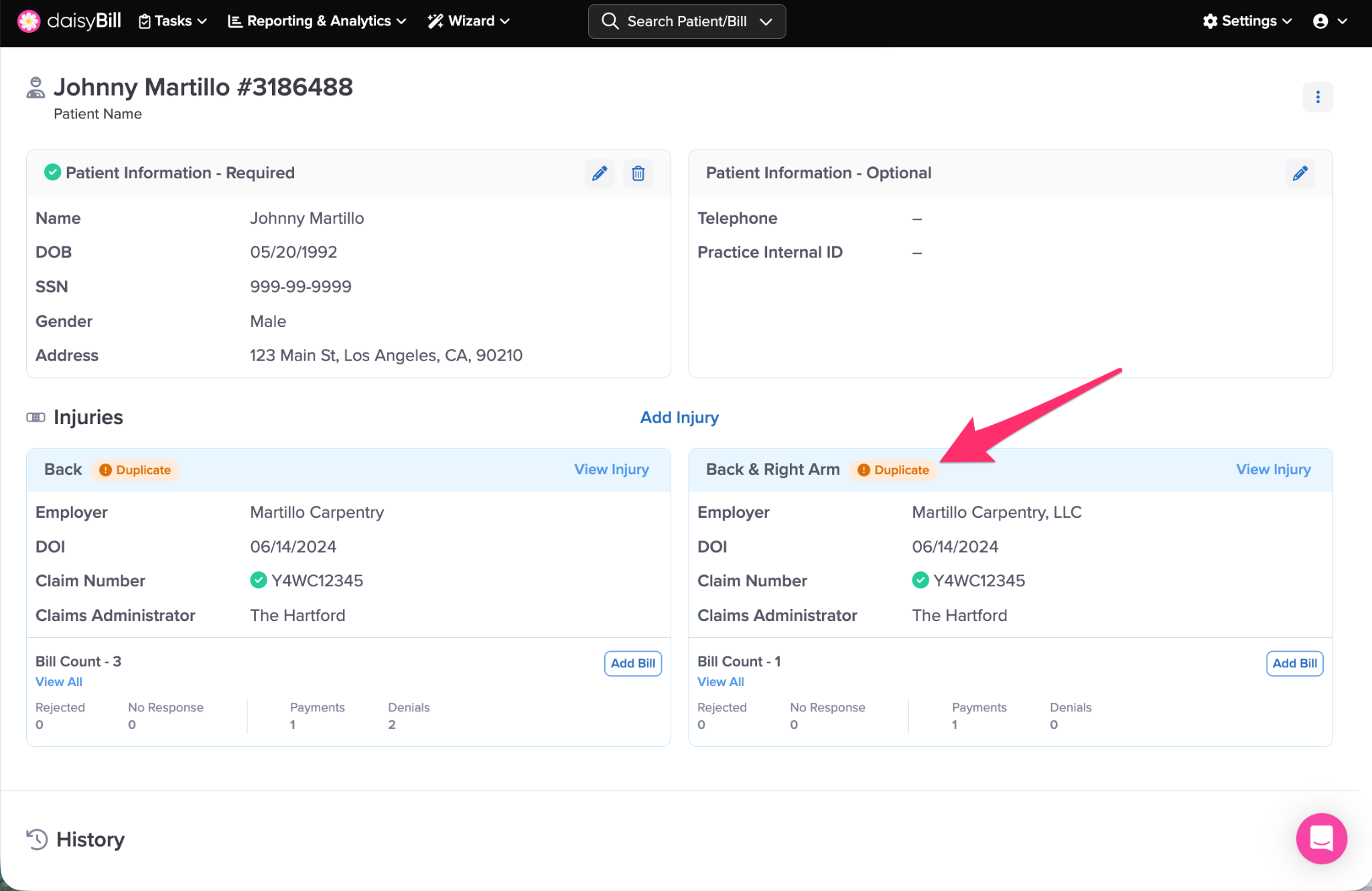
Step 3. Click ‘Review Duplicate’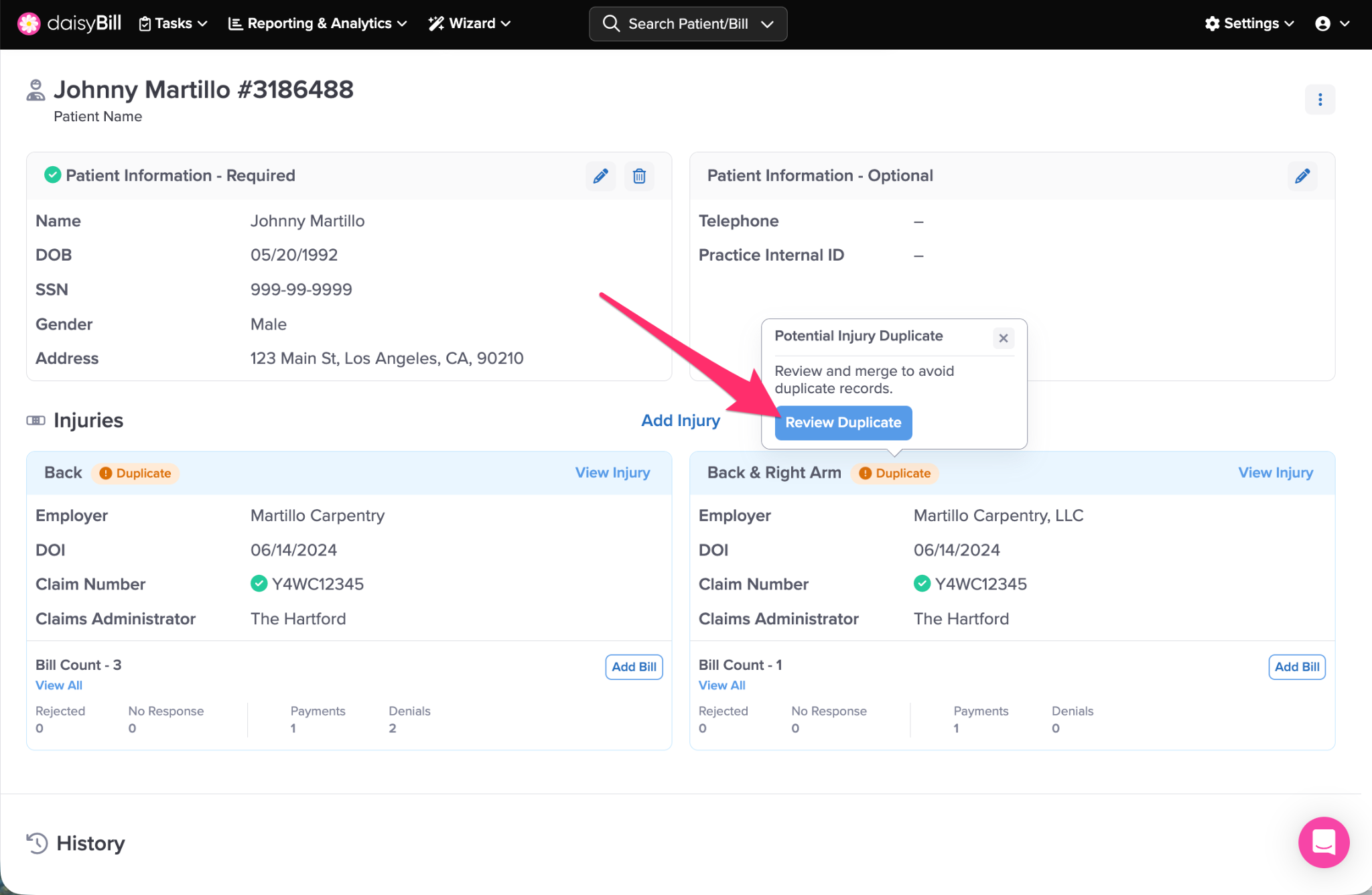
Step 4. Compare the two Injuries
If they are duplicates of each other, click ‘Keep this Injury’ at the bottom to select a primary Injury.
If they are distinct injuries that should not be merged, click ‘Mark as Distinct Injuries’ at the top of the page.
Step 5. Click ‘Merge Injury’
Step 6. Confirm the Injury merge
Injuries Merged!
Method 2: From the Injury Page
Step 1. Click the vertical three dots on a duplicate injury page, and click ‘Merge with Injury Duplicate’
Note: It does not make a difference if you initiate this from the duplicate injury or from the injury you wish to keep.
Step 2. Type in the name of the duplicate injury
Select the duplicate injury from the corresponding dropdown menu
Step 3. Review the two injuries to determine which one you’d like to keep
Step 4. Click ‘Keep This Injury’ at the bottom to select a primary injury.
Step 5. Click ‘Merge Injury’
Step 6. Confirm the Injury merge
Need to merge Patients? Refer to the Help Article: Merge Patients